GETTING STARTED
Your first folder backup
Choose your folders, save a job, and check the result.
1. Choose the folders
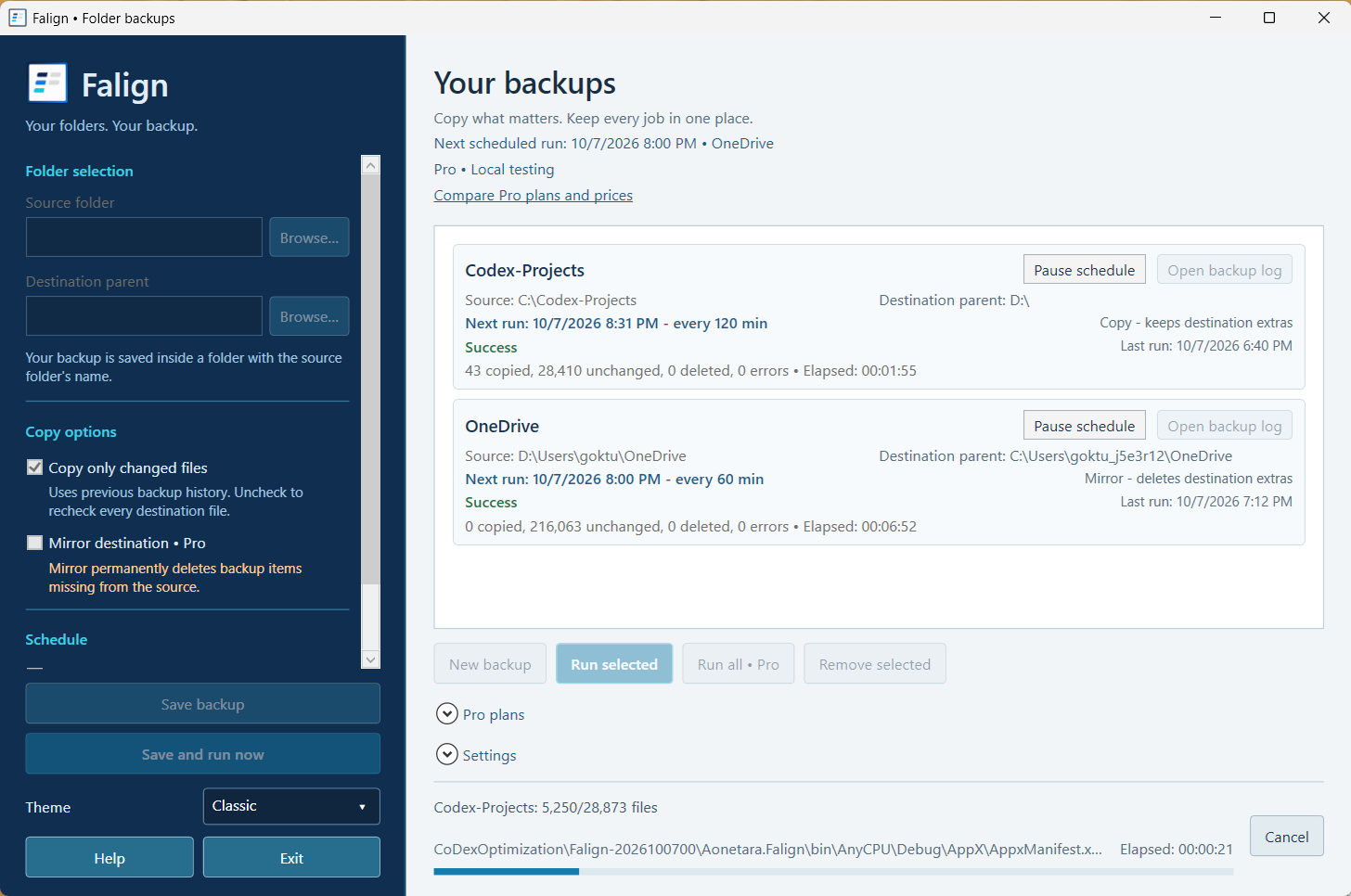
In Folder selection, browse to your source folder. Then choose the destination parent. Your backup is saved inside a folder with the source folder's name.
For example, a source named Documents creates a Documents folder inside your selected destination parent.
2. Set your copy options
Leave Copy only changed files selected to use previous backup history. Uncheck it to recheck every destination file.
Copy or mirror? Copy keeps destination extras. Pro mirror mode permanently deletes backup items missing from the source. Verify your folders before enabling it. Backups do not preserve older versions.
3. Save and run
Use Save backup to keep the job for later, or Save and run now to start. For a saved job, select it and use Run selected. Pro also offers Run all.
4. Review the result
Check the job status, last run, elapsed time, and copied, unchanged, deleted, and error counts. If errors appear, review the available backup log and check that both locations are accessible.
5. Add a schedule with Pro
Configure your job's schedule and check its next run in the backup list. You can pause it when needed. Keep Falign open, including in the tray, and ensure the source and destination remain accessible.
Explore Pro
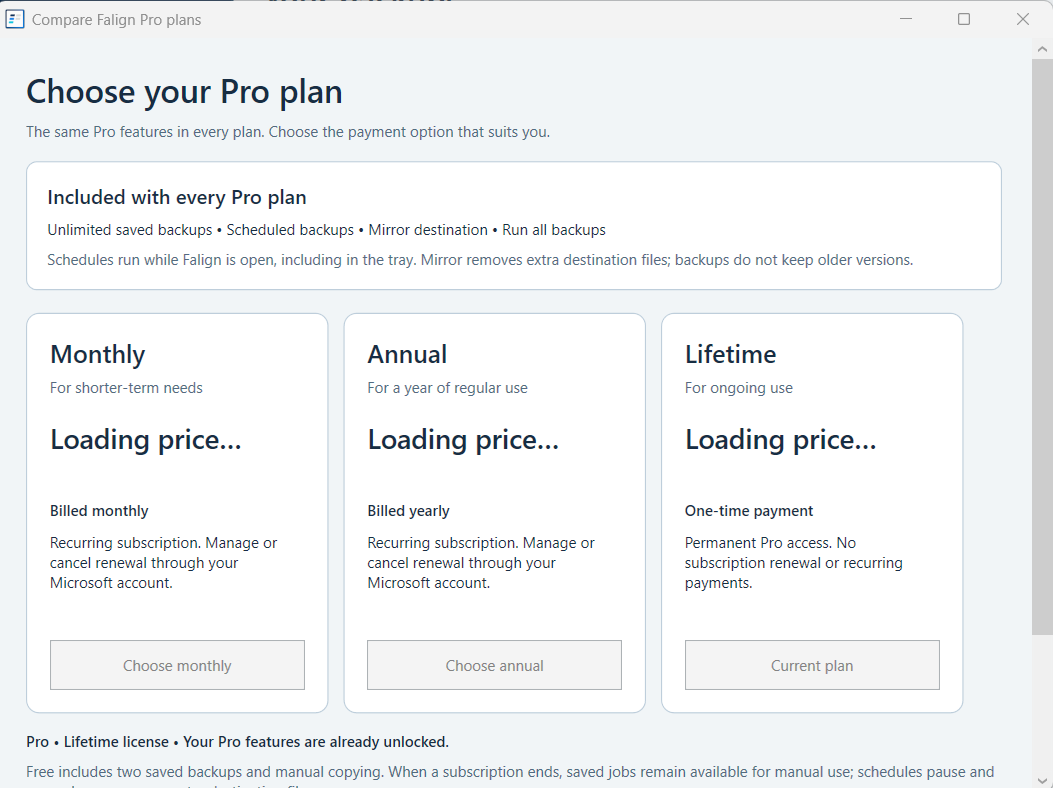
Open Pro plans inside Falign to compare monthly, annual, and lifetime payment options. Each option includes the same Pro features. Current prices appear in the app.